
How to put ads in WordPress website ?
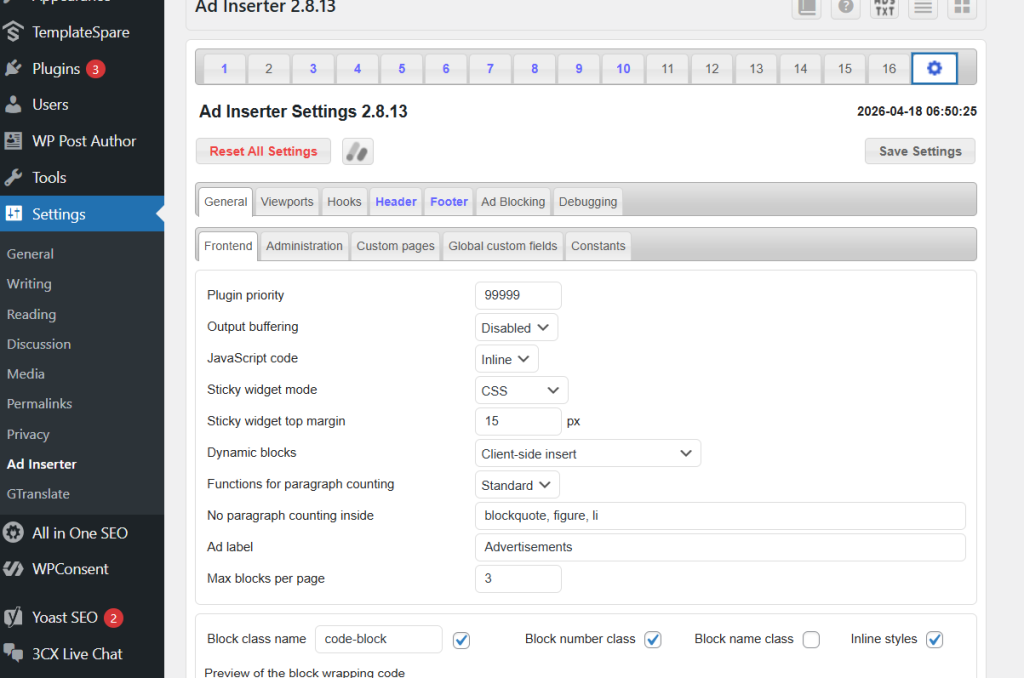
Step1 : goto settings then ad inserter plugin
Step2 : for top header ads goto setting of ad inserter plugin then click on header and put this code as shown in image below then choose where to show ads like page, post, then click on save settings but dont forgot to enable dot button near to php must come green button then only show ads
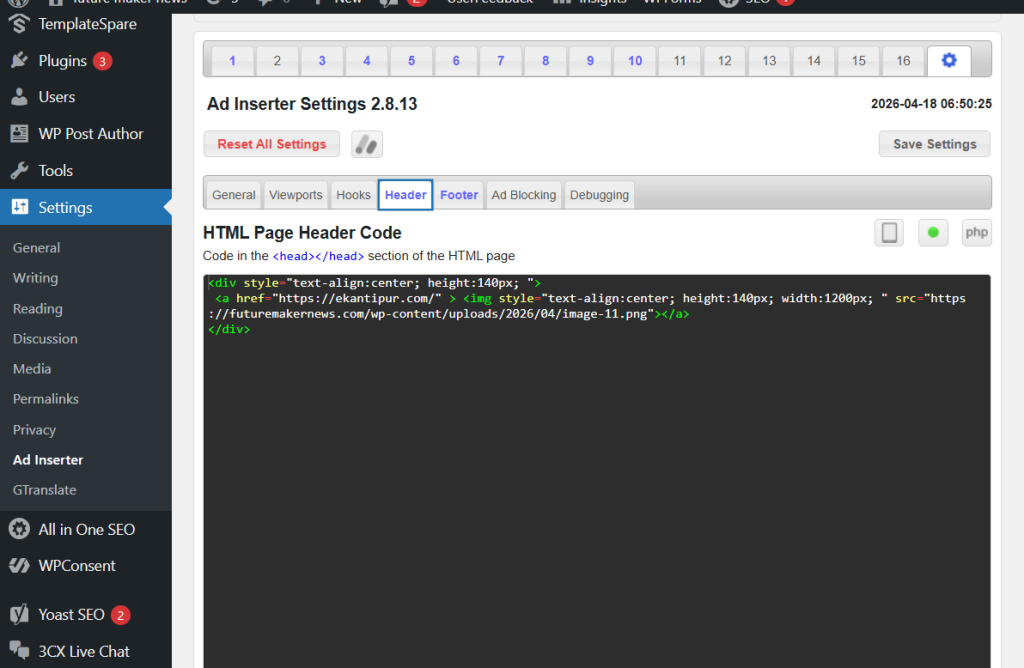
after that top header ads show like this below in image

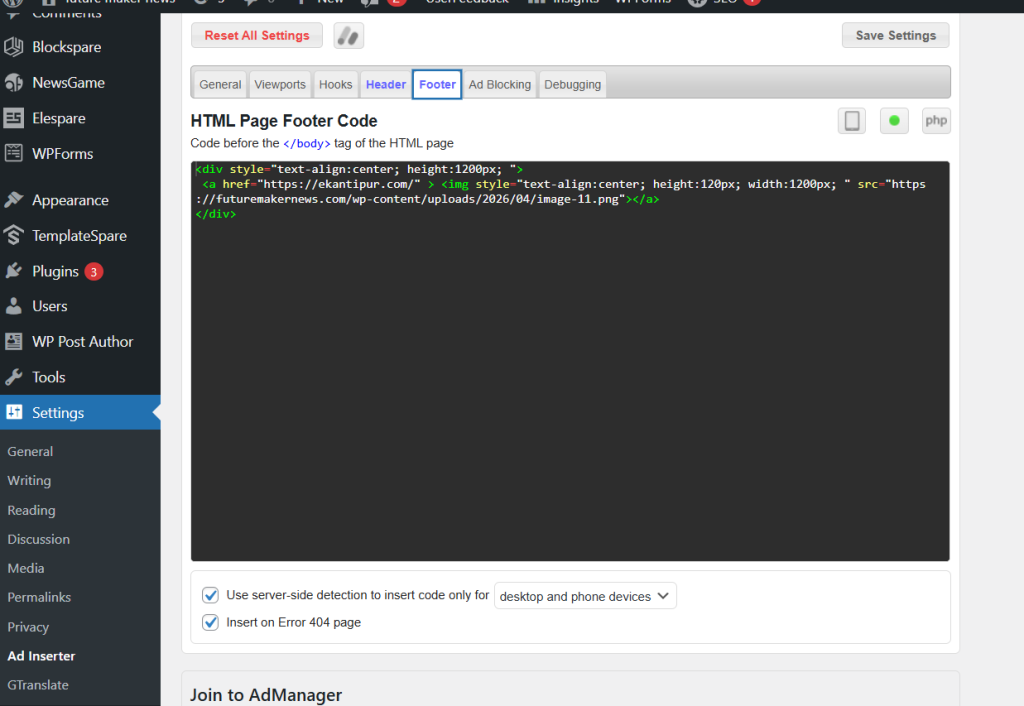
for footer ads same like header ads put code of ads in footer then enable dot button and choose below as show in image

then at last save settings
after save settings ads in website or home page shown like this

Now for header ads
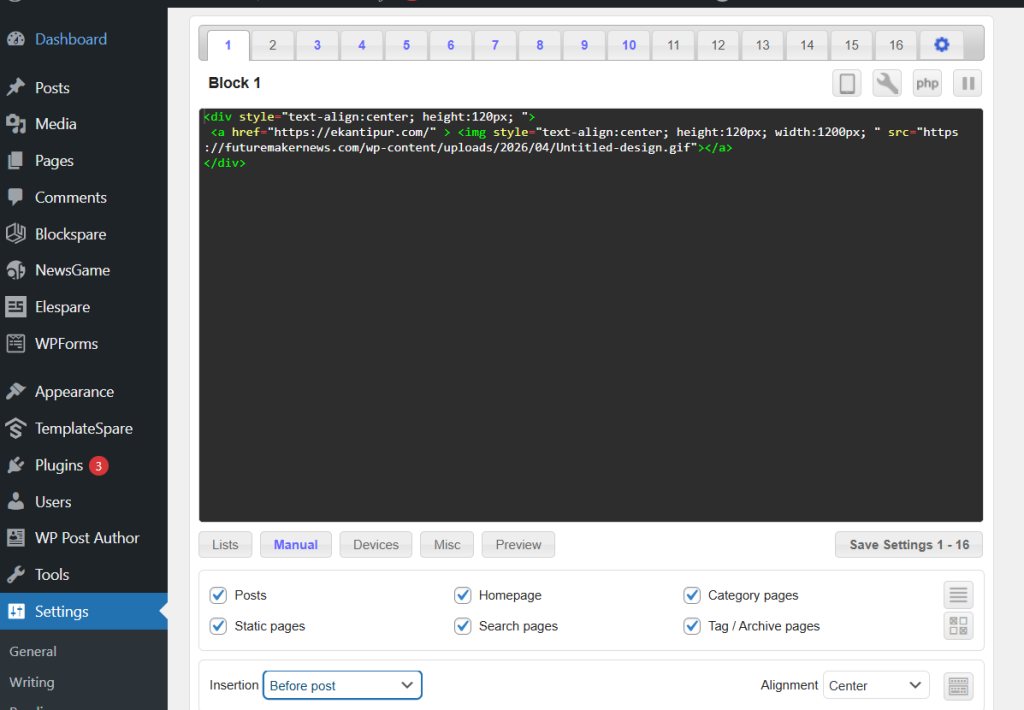
Step1 : goto ad inserter plugin then goto block 1 put ads code
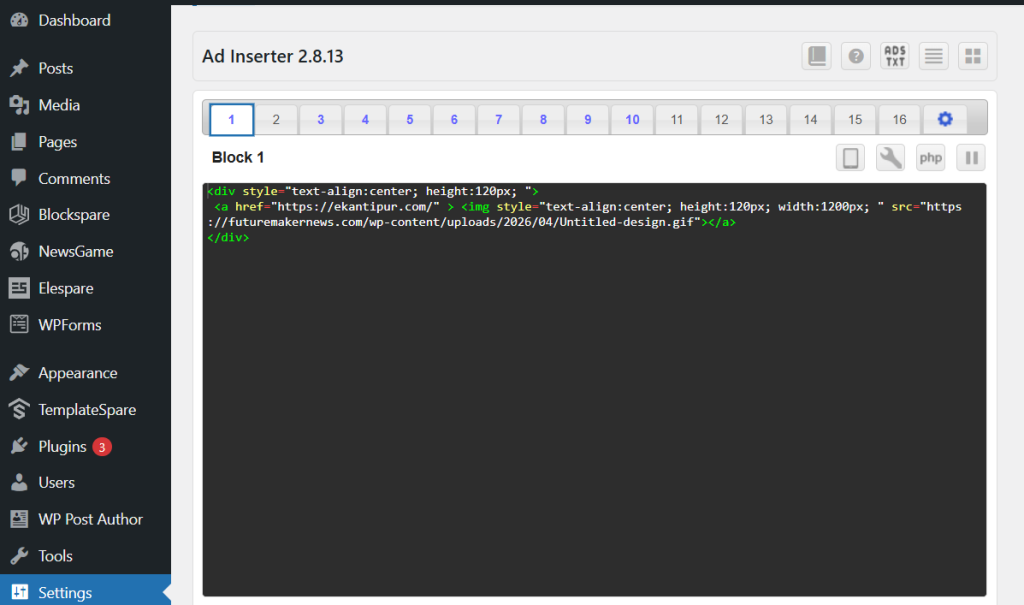
Step 2: select where you want to show ads in all page , post, etc as show in image below also
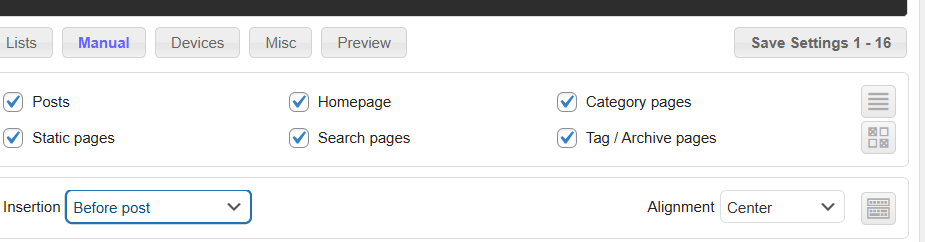
Step 3 : Dont forget to choose alignment left, right ,center as your choice then at last do save settings and in block type ads there is not dot button for enable & disable button
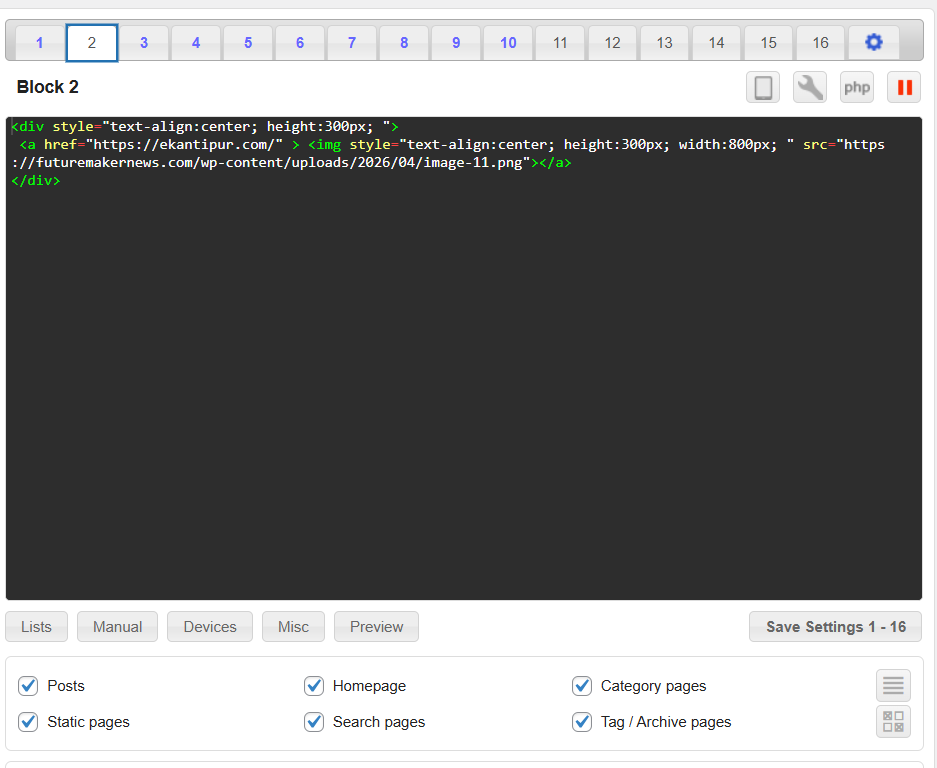
Step 4 : same as block 1 put ads code in other block other like block 2, 3, 4, etc
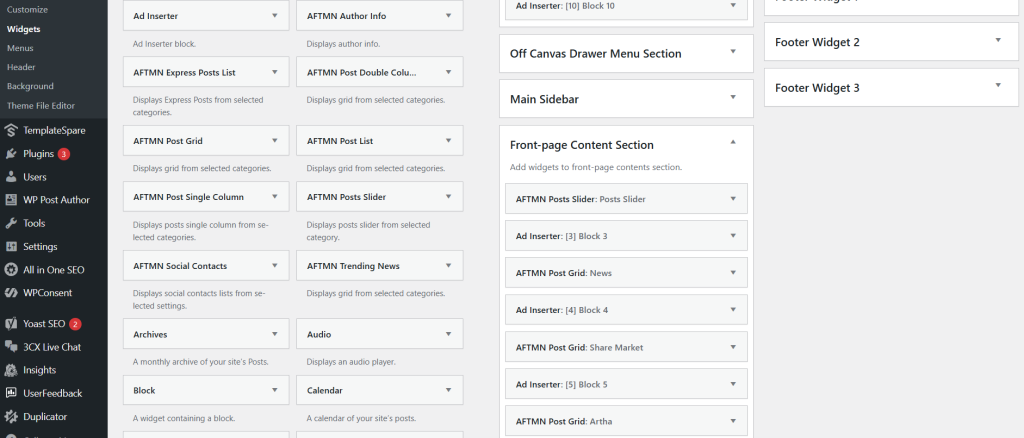
Step 5: Now goto widget & select where to show which ads
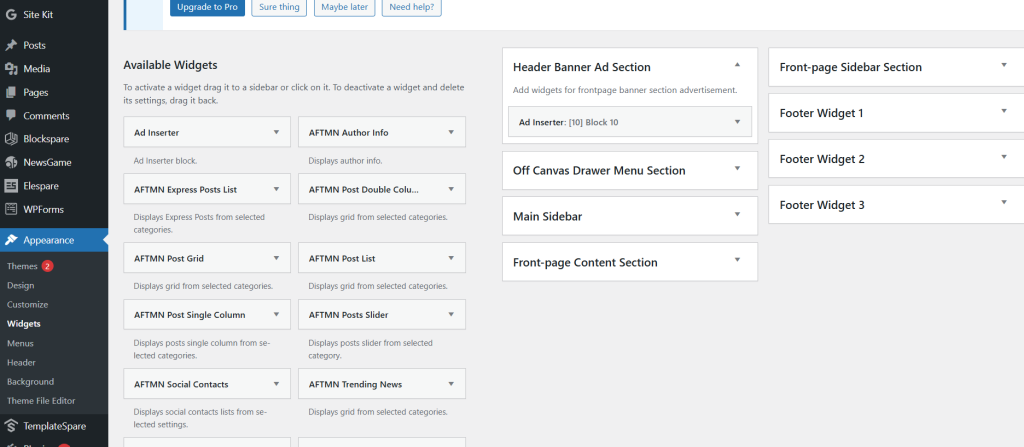
Step 5: for header ads drag & drop ad inserter plugin widget to header Banner Ad Section as shown in figure then choose block as I chosen block 10 because in header ads code is in block 10
Step 6: by doing step 5 ads in website show like this in given below image

Step 7: now for category ads to show in website like below shown


Step 8 : Now drag & drop ad inserter plugin widget to Front-page Content Section then below or above your category drag ad inserter plugin widget and select which block code show that category ads as shown in figure
Thats it.
Ads Code given below :
<div style="text-align:center; height:120px; ">
 <a href="https://ekantipur.com/" > <img style="text-align:center; height:120px; width:1200px; " src="https://futuremakernews.com/wp-content/uploads/2026/04/Untitled-design.gif"></a>
</div>